
Home/3D tools/GLB to 3MF
Glbto3mf 3D workflow
Built for model preparation
GLB → 3MF
Free glb to 3mf converterReady for your 3D workflow.
Move your 3D model toward 3MF
Describe the model or conversion you want to begin.
Your model workflow starts in the browser and continues in the linked studio.
Create something made for 3D
Turn a photo or an idea into a model, then bring it into a 3MF workflow.
Model examples
Print a model made for the 3D workflow.
Explore a set of example objects and choose one to continue with a studio-based GLB to 3MF process.


Home & decor
Mushroom house
A decorative scene with a broad base and playful detail.
Continue this model


Games & gadgets
Vintage camera
A recognizable object with layered controls and a broad body.
Continue this model
Three simple steps
How to move from GLB to 3MF
Add your model
Bring a GLB, glTF, OBJ, FBX, PLY, STL, 3MF or STEP model into the workflow and begin with a clear description.
Set the size
Choose the height or longest side in millimetres, then check that the model is oriented the way you expect.
Continue to 3MF
Open the linked studio, review the shape and continue with the format and preparation settings your project needs.
More than a file conversion.
A model can arrive with the wrong scale, a confusing orientation or geometry that needs another look before it reaches a printer. Glbto3mf keeps the path clear: inspect the shape, decide the dimensions and move into a studio built for the next step.
- Print checkLook for open edges, shared geometry and surfaces that face the wrong way.
- Real sizeSet the dimensions in millimetres and keep the intended proportions in view.
- Focused handoffMove from the first model description into the destination 3D studio without extra clutter.
Print tips
Getting a better result from a 3D model
Mind thin parts
Details below roughly 1 mm, including antennae and narrow tails, may disappear in a print. Increase the scale or strengthen the part.
Add supports
Overhangs beyond about 45 degrees often need support. Let the slicer add it or rotate the model to reduce the unsupported span.
Keep useful detail
A detailed mesh can still print well. The slicer will simplify the file to match its own layer and nozzle resolution.
Glbto3mf studio
Make something to print.
Turn a photo, sketch or prompt into a model workflow, then continue toward a 3MF-ready result in the linked studio.
- 3D GeneratorShape a printable model from a photo or a prompt.
- Image GeneratorDesign a figure or object as an image first.
- Video GeneratorBring the design to life in a short presentation.
3D workflows
Image-led ideas
Studio handoff


GLB to 3MF workflow FAQ
What does GLB to 3MF mean?
It describes moving a GLB model into a workflow that can produce or prepare a 3MF file. The exact steps depend on the model, the desired scale and the destination studio.
Which model files can I start with?
Common starting points include GLB, glTF, OBJ, FBX, PLY, STL, 3MF and STEP files. The destination studio determines the final import and export options.
Why use 3MF instead of STL?
3MF can preserve project information such as units and additional print settings, while STL focuses mainly on the surface shape. Choose the format that matches your slicer and project.
Can I work with glTF files too?
Yes, when the linked workflow supports the glTF variant. A single GLB file is usually easier to move because its geometry and supporting data travel together.
How large should my model be?
Choose a height or longest side in millimetres based on the object and the printer you intend to use. GLB files often need an explicit scale decision before slicing.
Why can a model appear on its side?
Different 3D tools use different up axes. Check the orientation controls and rotate the model until its base meets the build plate in the expected direction.
What should I check before printing?
Look for open edges, intersecting surfaces, very thin details and unsupported overhangs. A slicer needs a coherent solid to calculate the interior and exterior correctly.
Are colors and textures preserved?
That depends on the final format and the destination application. A shape-only print workflow generally focuses on geometry rather than surface appearance.
Can I use the workflow for a scanned model?
Scans can work well after cleanup. Check for holes, noisy surfaces and non-manifold sections before sending the model into a slicer or print preparation step.
Where do I continue with my model?
Use any of the Start creating or Continue to studio buttons on this page to open the linked industrial 3D studio and carry on from there.
More tools for 3D work
Explore all
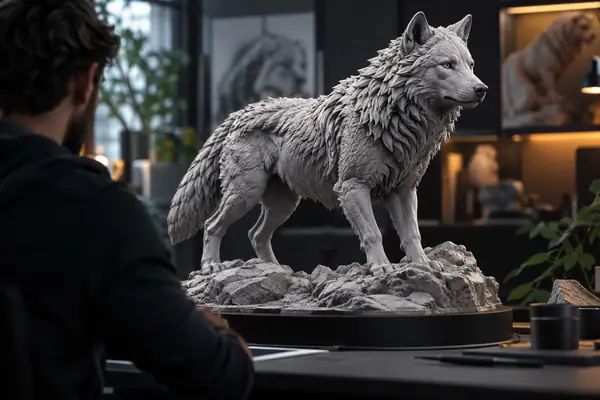
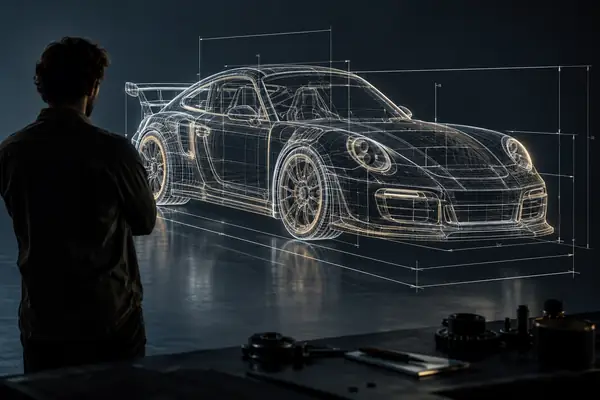
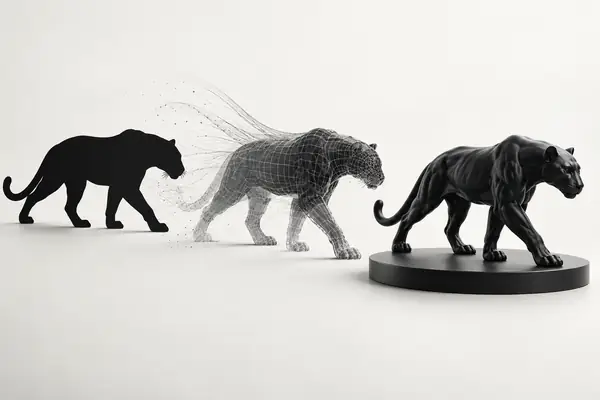
From screen to print bed.
A clear starting point for your next 3D model.